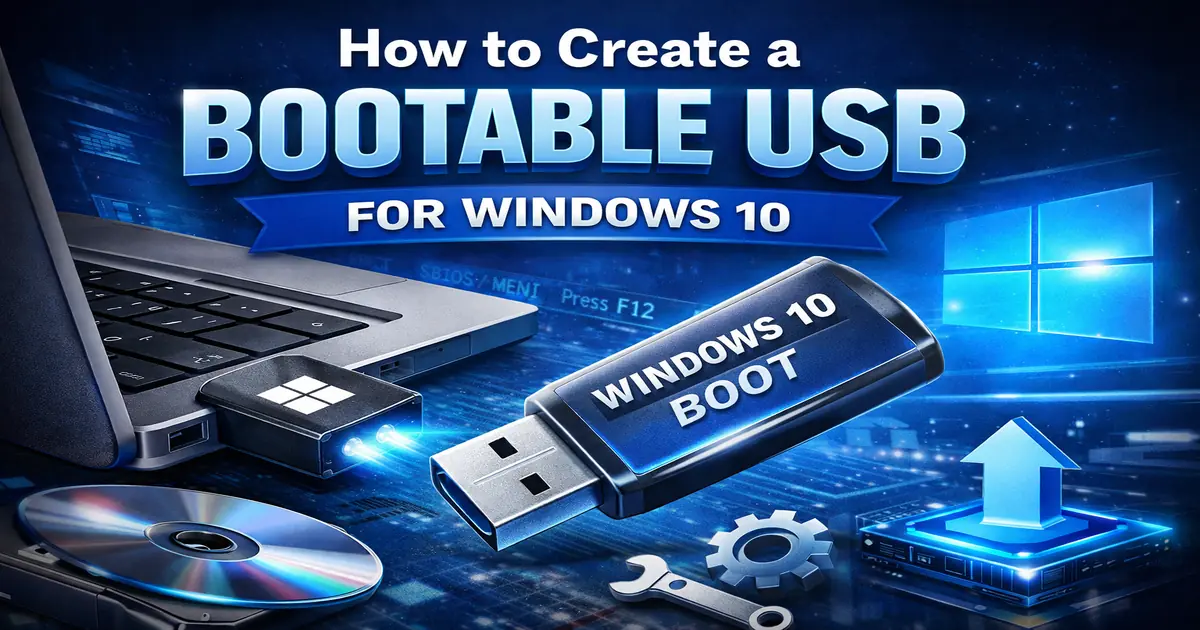
How to Create a Bootable USB for Windows 10 (Full Recovery & Install Guide)
Create a Bootable USB for Windows 10, if your PC is stuck, broken, slow, corrupted, refusing to boot, or you just want a clean installation — a bootable USB is the most reliable fix.
The problem?
If you search on Google how to create bootable USB Windows 10, you’ll find countless guides online — most of which jump between steps, miss critical details, or leave you halfway through the process still confused.
This is the complete version.
A no-nonsense, beginner-friendly walkthrough that shows you exactly how to:
- download the correct Windows 10 installation files
- turn any USB stick into a bootable installer
- use Microsoft’s Media Creation Tool or Rufus
- change your BIOS boot order
- reinstall Windows cleanly
- repair a system that won’t start
This article replaces all your previous related posts and combines everything into one clear, updated 2025 guide.
What You Need Before You Start (USB Size, Tools, Requirements)
Before creating a bootable USB, make sure you have the right tools ready.
Missing even one of these can cause the process to fail.
Here’s the simple checklist:
1. A USB Flash Drive (8GB minimum / 16GB recommended)
Windows installation files are big, and updates keep expanding them.
A 16GB USB stick avoids issues.
Avoid using:
- USBs with important files
- Slow, unbranded USB drives
- USBs with hidden partitions
The installer will wipe everything.
2. A Working Windows PC
You need a working machine to:
- download Windows
- run Rufus or the Media Creation Tool
- write the installation files to USB
The PC you fix can be different from the one you prepare the USB on.
3. A Stable Internet Connection
Microsoft’s download is several gigabytes.
Interruptions can lead to file corruption.
4. Windows Installation Media
Two safe methods for creating your Windows 10 installation media:
Option A: Microsoft Media Creation Tool (Beginner friendly)
Best for most people.
It downloads Windows and creates the bootable USB automatically.
Option B: Rufus (Advanced features + more control)
Ideal for:
- older PCs
- legacy BIOS systems
- UEFI-only systems
- avoiding Secure Boot issues
This guide covers both.
5. Drivers & Backups (Important!)
If your PC still works, create backups of:
- important files
- browser passwords
- documents/pictures
- licence keys
A clean install wipes everything.
Summary
Once you have:
✔ A USB stick
✔ A working PC
✔ Internet
✔ Media Creation Tool or Rufus
…you’re ready to build your recovery USB.
Method 1 — Create a Bootable USB for Windows 10 Using Microsoft’s Media Creation Tool (Media Creation Tool USB)
This is the simplest and safest way to create a Windows 10 USB installer.
It’s the method Microsoft recommends, and it’s almost impossible to get wrong.
If you’re not sure which method to choose, start with this one.
Step 1: Download the Media Creation Tool
Go to Microsoft’s official download page and click:
Download tool now
Make sure you’re downloading it directly from Microsoft.
Avoid third-party sites — they often host outdated or modified installers.
Once downloaded, run the file.
Step 2: Accept the Licence Terms
When the tool opens, accept the Microsoft licence agreement.
(This is required — you can’t skip it.)
Step 3: Choose “Create installation media (USB flash drive)”
You’ll see two options:
- Upgrade this PC now
- Create installation media (USB flash drive, DVD, or ISO file)
Choose the second option.
Click Next.
Step 4: Select Language, Edition, and Architecture
For most users, you can leave everything on default:
- Language: English (United Kingdom)
- Edition: Windows 10
- Architecture: 64-bit (recommended)
If your PC is more than 10 years old, you may still need 32-bit — but this is extremely rare in 2025.
Click Next.
Step 5: Choose “USB Flash Drive”
The tool will ask whether you want to:
- burn an ISO
- write directly to a USB stick
Choose:
USB flash drive
Click Next.
Step 6: Select Your USB Drive
Make sure your USB drive appears in the list.
Important:
- If the drive doesn’t appear → unplug it and reconnect
- Ensure you choose the correct USB
- Anything on the drive will be erased
Click Next.
Step 7: Wait While Windows Downloads
This step can take:
- 5–10 minutes on fast fibre
- 20–40 minutes on slower broadband
The tool will:
- download all Windows 10 installation files
- format the USB correctly
- make it bootable
Do not remove the USB until the process is complete.
Step 8: Your Bootable USB Is Ready
Once the tool shows:
Your USB flash drive is ready
…you’re done.
You now have a fully working Windows 10 bootable USB that can:
- repair a broken system
- reinstall Windows
- install Windows on a new PC
- fix boot errors
- reset corrupted installations
Tip: Use DISM and SFC to fix corruption
Who Should Use This Method?
Choose the Media Creation Tool if you want:
- the simplest possible process
- automatic formatting
- guaranteed Secure Boot compatibility
- zero configuration
If you need more control, want to use unofficial ISOs, or need to fix BIOS-level issues, use Rufus (next method).
Method 2 — Create a Bootable USB Using Rufus (Advanced & Older PCs)
Rufus is the best tool when you want more control over how your bootable USB is created, especially if you need a Rufus bootable USB Windows 10 setup for older hardware or advanced BIOS configurations.
It’s ideal for:
- older PCs with legacy BIOS
- systems that struggle with Secure Boot
- creating bootable media from downloaded ISO files
- fixing stubborn boot issues
- advanced technicians who want specific formats
If the Media Creation Tool doesn’t work for your hardware, Rufus will.
Let’s walk through it step-by-step.
Step 1: Download Rufus
Download the latest version of Rufus from the official website (portable version recommended).
Rufus – Create bootable USB drives the easy way
Open the program — no installation required.
Step 2: Insert Your USB Drive
Plug in your USB stick (8GB+).
Rufus will automatically detect it under:
Device
If you don’t see it:
- reconnect the USB
- try a different port
- avoid USB hubs
Step 3: Select Your Windows 10 ISO File
Under Boot selection, click:
SELECT
Find your Windows 10 ISO file.
If you don’t have one yet:
- Download it directly from Microsoft using the “Download Windows 10 ISO” option
- Or use the ISO created earlier with the Media Creation Tool
Once selected, Rufus will pull in the correct file details.
Step 4: Choose Partition Scheme & Target System
This part matters — especially for older devices.
Most modern PCs (2012 and newer):
- Partition scheme: GPT
- Target system: UEFI (non-CSM)
Older PCs (pre-2012):
- Partition scheme: MBR
- Target system: BIOS or UEFI-CSM
If you’re unsure:
- Choose GPT + UEFI (works for the majority)
- Only choose MBR if your PC truly requires legacy boot mode
Step 5: File System & Cluster Size
Leave these as default:
- File system: NTFS or FAT32 (Rufus chooses automatically)
- Cluster size: Default
Advanced users can adjust these, but there is rarely a reason to.
Step 6: Click START
Rufus will warn you:
“All data on this device will be destroyed.”
Click OK.
Rufus will:
- format the USB
- apply the bootloader
- extract Windows files
- make the USB fully bootable
This usually takes 2–5 minutes — much faster than the Media Creation Tool.
Step 7: Your Bootable USB Is Ready
Once the progress bar turns green and shows READY, you’re done.
Remove the USB safely.
You now have a Windows bootable USB created manually, with full control over formats and compatibility.
When Should You Use Rufus Instead of the Media Creation Tool?
Use Rufus if:
- your PC refuses to boot from a Microsoft-created USB
- you need specific BIOS configurations
- you want to use your own ISO
- you are installing Windows on older or unusual hardware
- you hit errors during the Media Creation Tool method
Rufus is the “technician’s method,” and it works when everything else fails.
How to Boot from Your USB (BIOS / UEFI Setup Guide)
Creating the bootable USB is only half the job.
Now you need to boot Windows from USB, and this is where most people get stuck.
Different PCs use different BIOS/UEFI menus, different boot keys, and different layouts, which is why many users struggle to boot from USB in BIOS the first time.
But the steps are always the same.
Here’s the easiest universal guide you can follow on any Windows machine.
Step 1: Plug the Bootable USB into the PC You Want to Fix
Insert the USB before turning the computer on.
UEFI systems detect bootable drives at startup — not later.
Step 2: Turn On the PC and Press the Boot Menu Key
Every brand uses a different key.
Here are the most common:
| Brand | Boot Menu Key |
|---|---|
| HP | F9 |
| Dell | F12 |
| Lenovo | F12 |
| Acer | F12 |
| ASUS | ESC or F8 |
| MSI | F11 |
| Samsung | F12 |
| Toshiba | F12 |
If you’re unsure:
- Tap F12 repeatedly as soon as you turn the PC on.
It works for most systems.
If you see a manufacturer logo → you’re already late.
Restart and try again, tapping the key continuously.
Step 3: Choose Your USB Drive from the Boot Menu
In the boot menu you’ll see something like:
- “USB HDD: SanDisk”
- “UEFI: Kingston DataTraveler”
- “USB Storage Device”
- “UEFI: USB Flash Drive”
Choose the one that clearly references your USB.
Important:
Always choose the UEFI version when available — it’s faster and more compatible with Windows 10.
Step 4: If You Don’t See the USB — Check These Settings
This is the #1 reason people struggle.
Fix 1: Enable USB Booting
Inside BIOS, look for:
- Boot
- Advanced
- Security
- System Configuration
Find:
USB Boot → Enable
Fix 2: Disable Secure Boot (Only if Needed)
Some older PCs block non-Microsoft bootloaders.
Go to:
Security → Secure Boot → Disable
Fix 3: Change the Boot Order
Set:
- USB
- Hard Drive
- Network Boot
This forces the system to prioritise your USB.
Fix 4: Use a Different Port
Some PCs only boot from:
- USB 2.0 ports
- Rear ports on desktops
Try another port if all else fails.
Step 5: Windows Setup Should Now Launch
If you see:
“Press any key to boot from USB…”
Press Enter.
You’ll then see the Windows installation screen:
- Language
- Time format
- Keyboard layout
This means the bootable USB is working perfectly.
Troubleshooting: If Your PC Still Won’t Boot from USB
Try this checklist:
- USB was not created correctly → recreate using Rufus
- Wrong BIOS mode (Legacy vs UEFI) → switch modes
- Secure Boot blocking → disable temporarily
- Corrupted ISO → download again
- USB too slow → use a faster stick
- USB not formatted → rebuild using Media Creation Tool
If none of these work, the issue is usually:
- a failing hard drive
- a motherboard problem
- damaged boot sectors
- incorrect BIOS firmware
But in 90% of cases, fixing BIOS settings solves everything.
How to Reinstall Windows 10 (Clean Install Guide)
Once you’ve successfully booted from your USB, you can repair, reset, or fully reinstall Windows.
This section shows you how to perform a Windows 10 clean install from scratch using your bootable USB — the method that gives you the best chance of fixing:
- corrupted Windows files
- constant crashes
- boot loops
- malware damage
- registry issues
- unfixable performance problems
A clean install wipes the old system and installs a fresh copy of Windows.
Here’s exactly how to do it.
Step 1: Start the Windows Installer
After booting from USB, you’ll see the Windows Setup screen.
Choose:
- Language: English (United Kingdom)
- Time and currency: English (United Kingdom)
- Keyboard: UK
Click Next.
Click Install Now.
Step 2: Enter Your Product Key (Or Skip It)
You’ll be asked for your Windows product key.
Choose one of the following:
Option A: Enter your key
If you have:
- a retail key
- a digital licence
- a COA sticker
You can enter it now.
Option B: Click “I don’t have a product key”
Windows 10 will activate later automatically if:
- your PC has a digital licence
- it’s previously activated with Windows 10
- you sign in with a Microsoft account linked to your licence
Skipping is perfectly safe.
Step 3: Choose Windows 10 Edition
Select:
- Windows 10 Home
or - Windows 10 Pro
Choose the version you were running before.
Click Next.
Step 4: Accept the Licence Terms
Tick the box.
Click Next.
Step 5: Choose “Custom: Install Windows only (advanced)”
You’ll see two options:
- Upgrade: Keep files and apps
- Custom: Install Windows only (advanced)
Choose Custom.
This gives you a completely clean installation.
Step 6: Partition Selection (The Important Step)
You will now see a list of partitions such as:
- Drive 0 Partition 1
- Drive 0 Partition 2
- Recovery
- System
- Primary
- MSR
For a full clean install, follow this method:
For most users:
- Select each partition on Drive 0
- Click Delete
- Continue until Drive 0 shows as Unallocated Space
Don’t delete partitions on Drive 1, Drive 2, etc., unless you know what you’re doing.
What Windows will do next:
Windows will automatically recreate:
- System partition
- MSR partition
- Primary partition
- Recovery environment
So you don’t need to create them manually.
Step 7: Select the Unallocated Space and Click Next
Windows will begin installing.
This takes:
- 5–10 minutes on an SSD
- 15–30 minutes on a hard drive
Your PC will reboot several times during this stage.
This is normal.
IMPORTANT:
Remove the USB only after the first reboot, or the installer may start again.
If it does loop:
- restart PC
- tap the boot menu key
- choose your internal drive instead of USB
Step 8: Complete the Windows Setup Experience
After installation, Windows will ask you to configure:
- region
- keyboard layout
- Wi-Fi
- privacy settings
- user account
You can either:
- sign in with a Microsoft account
- or create a local offline account
Either is fine.
Step 9: Windows Activation
Once you’re on the desktop:
- connect to the internet
- Windows will auto-activate within seconds
Go to:
Settings → Update & Security → Activation
If your licence is valid, it will say:
“Windows is activated with a digital licence.”
Step 10: Install Drivers & Windows Updates
Before doing anything else:
- Open Settings → Update & Security → Windows Update
- Click Check for updates
- Install all available updates
- Restart your PC
Most drivers install automatically, but for full stability:
Download the latest drivers from your manufacturer:
- chipset
- graphics
- Wi-Fi
- Bluetooth
- audio
This ensures smooth performance.
Remember to protect your PC after reinstalling Windows
What a Clean Install Fixes
A full reinstall fixes issues that:
- SFC or DISM can’t repair
- restore points can’t undo
- startup repair fails to fix
- malware has damaged
- corrupt registry or system files break
If your system was completely unusable, this gets you back to a fresh, stable Windows environment.
How to Fix Bootable USB Not Working (Troubleshooting Guide)
Even when the USB is created correctly, some PCs refuse to boot from it.
This is one of the most common Windows repair problems — but luckily, the fixes are straightforward.
Below is a complete checklist covering every major cause of a non-working boot USB, and exactly how to fix each one.
1. USB Not Showing in Boot Menu
This is the most common issue.
Fix: Enable USB Boot
Enter BIOS → look for:
- USB Boot
- Legacy USB Support
- External Boot
Set them to Enabled.
Fix: Try a USB 2.0 Port
Yes — this really matters.
Many older PCs will not boot from USB 3.0 ports.
Try a black USB 2.0 port, not a blue 3.0 port.
Fix: Reinsert USB and Restart
Some systems only detect USBs connected before power-on.
2. PC Boots to Windows Instead of USB
This means your internal drive has priority.
Fix 1: Change Boot Order
BIOS → Boot Priority → move USB to the top.
Fix 2: Use the Boot Menu Key
Tap F12, F9, ESC, or F11 depending on your brand.
This forces a one-time USB boot.
Fix 3: Disable Fast Boot
Fast Boot skips external device checks.
Disable under:
BIOS → Boot → Fast Boot → Off
3. “A Required Device Isn’t Connected” or USB Boot Error
This happens when the USB wasn’t created properly.
Fix: Recreate the USB Using Rufus (or rebuild Windows bootloader if startup repair fails)
Common causes:
- corrupted ISO
- Media Creation Tool failed halfway
- USB too slow
- unstable connection during download
Rufus is more reliable in these situations.
4. Black Screen After Selecting USB
This usually means a BIOS mode mismatch.
If your system uses UEFI, create USB with:
- GPT partition scheme
- UEFI boot target
- FAT32 file system
If your system uses Legacy BIOS, create USB with:
- MBR partition scheme
- BIOS/UEFI-CSM boot target
Recreate USB accordingly.
5. Secure Boot Blocking the USB
Many OEMs block unauthorised bootloaders.
Fix: Disable Secure Boot
BIOS → Security → Secure Boot → Disabled
Note: You can turn Secure Boot back on after installation.
6. “Press Any Key to Boot from USB” Doesn’t Appear
This can mean:
- USB not actually bootable
- USB formatted incorrectly
- Installer files missing
Fix: Create USB using Media Creation Tool
This guarantees correct formatting:
- FAT32 for UEFI
- Correct bootloader files
- Proper partitioning
It solves this 90% of the time.
7. Installer Loads but Crashes
If you get errors during installation:
Try:
- a different USB stick
- a different USB port
- remaking the USB using the opposite tool (Rufus ↔ MCT)
- checking RAM with Windows Memory Diagnostic
Sometimes the USB itself is faulty.
8. PC Doesn’t Detect USB on Boot at All
This is rare — usually hardware-related.
Check:
- USB port damage
- Motherboard settings reset
- Outdated BIOS version
- Faulty USB stick
Advanced fix: Update BIOS
A BIOS update often improves USB boot compatibility.
Quick Troubleshooting Summary
| Problem | Likely Cause | Fix |
|---|---|---|
| USB not listed | Disabled boot options | Enable USB Boot |
| Boots to Windows | Wrong boot order | Change priority / use Boot Menu |
| Black screen | Wrong partition scheme | Recreate USB with correct mode |
| Bootloader error | Corrupt creation | Use Rufus / re-download ISO |
| No prompt to boot | Wrong file system | Recreate with MCT |
| Crashes during install | Bad USB | Try different stick/port |
Final Note
If you’ve followed this guide and the USB still won’t boot, the issue is almost always:
- a failing hard drive
- motherboard/BIOS corruption
- memory failure
- USB controller issues
At that point, hardware diagnostics are required.
But for 90% of users, the steps above fix the problem instantly.