Cache Explained – When (and When Not) to Clear It for Better Speed

Should I Clear Cache?
You’ve probably heard the advice: “Try clearing your cache.” But what does that actually mean—and does it really speed up your computer or browser?
This guide explains what cache is, why it exists, when clearing it helps, and when it doesn’t—so you can keep your PC and apps running smoothly without unnecessary steps.
What is Cache?
- Definition: Temporary storage where apps and browsers keep frequently used data.
- Examples:
- Browsers cache images, scripts, and cookies for faster site loading.
- Windows caches system updates and temporary files and so from time to time it’s necessary to clear Windows cache.
- Apps like Microsoft Teams cache settings and chat history.
- Goal: Make things faster by avoiding reloading data.
Browser Cache Explained
A browser cache stores website files—like images, scripts, and stylesheets—on your device to speed up future visits. Instead of downloading everything again, your browser loads cached data locally. This improves performance but may require occasional clearing to fix display errors or outdated content.
Benefits of Cache (clear cache benefits)
- Faster website loading.
- Reduced strain on internet connection.
- Smoother app and system performance.
See overall speed boosts in the Performance hub.
When Cache Causes Problems
Our Windows hub explains cache-related errors.
Outdated or Corrupted Files
- Old cache files may conflict with updated websites or apps.
Taking Up Too Much Space
- Large temp files or Windows Update cache filling your drive.
App Glitches
- Teams/Outlook not loading properly often fixed by clearing cache.
When You Should Clear Cache (when to clear cache)
- Browser not loading websites correctly.
- App crashes or fails to update.
- Low storage space on PC.
- After removing malware.
Our Troubleshooting hub covers common cache issues.
When You Shouldn’t Clear Cache
- If everything is working fine → cache helps speed things up.
- Clearing cache too often = slower load times until cache rebuilds.
How to Clear Cache (Step by Step)
Browser Cache
- Chrome/Edge/Firefox → Settings > Privacy & Security > Clear Browsing Data.
Windows System Cache
- Run Disk Cleanup or Storage Sense.
- Commands:
cleanmgr- PowerShell:
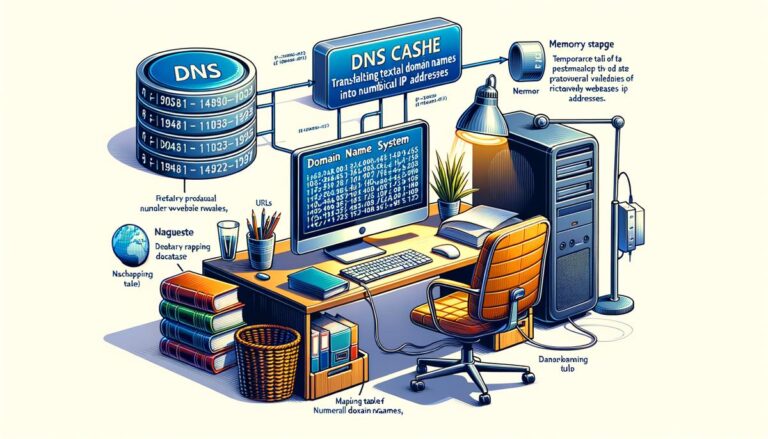
Clear-DnsClientCache
Automate cleanup in the PowerShell hub.
Microsoft Teams Cache
To clear Teams cache, follow this procedure:
- Close Teams.
- Navigate to
%appdata%\Microsoft\Teams→ delete Cache folder.
For shared file optimization, see the Collaboration hub.
Other Apps
- Outlook → delete .OST files.
- Discord, Slack → clear cache folders.
Myths About Clearing Cache
- ❌ “Clearing cache always speeds up your computer.” → Only if cache is corrupted.
- ❌ “Cache is harmful.” → No, it’s meant to improve performance.
- ✅ “Clearing cache frees storage space.” → True, but only temporary.
FAQs (Should I Clear Cache)
Does clearing cache speed up Windows?
Sometimes—if the cache is corrupted or full. Otherwise, cache actually makes things faster.
Will clearing cache delete my files?
No. It removes temporary data only, not your documents or photos.
How often should I clear cache?
Only when troubleshooting issues or running low on storage.
What’s the difference between cookies and cache?
Cache stores files to speed loading; cookies store login/session info.
Does clearing cache speed up PC
Clearing cache can free up storage space and resolve performance issues, especially if cached files are corrupted or excessive. However, it won’t make your PC significantly faster overall—it mainly helps browsers and apps run smoother by removing outdated or unnecessary temporary data.
External sites
- For more, see Mozilla Support – Clear Cache, which provides additional expert insight.
- External reference: Google Chrome Help – Clear Cache offers further reading.